Cricut Account & Machine Setup (Joy 2)
By: alexander
•Oct 6, 2026
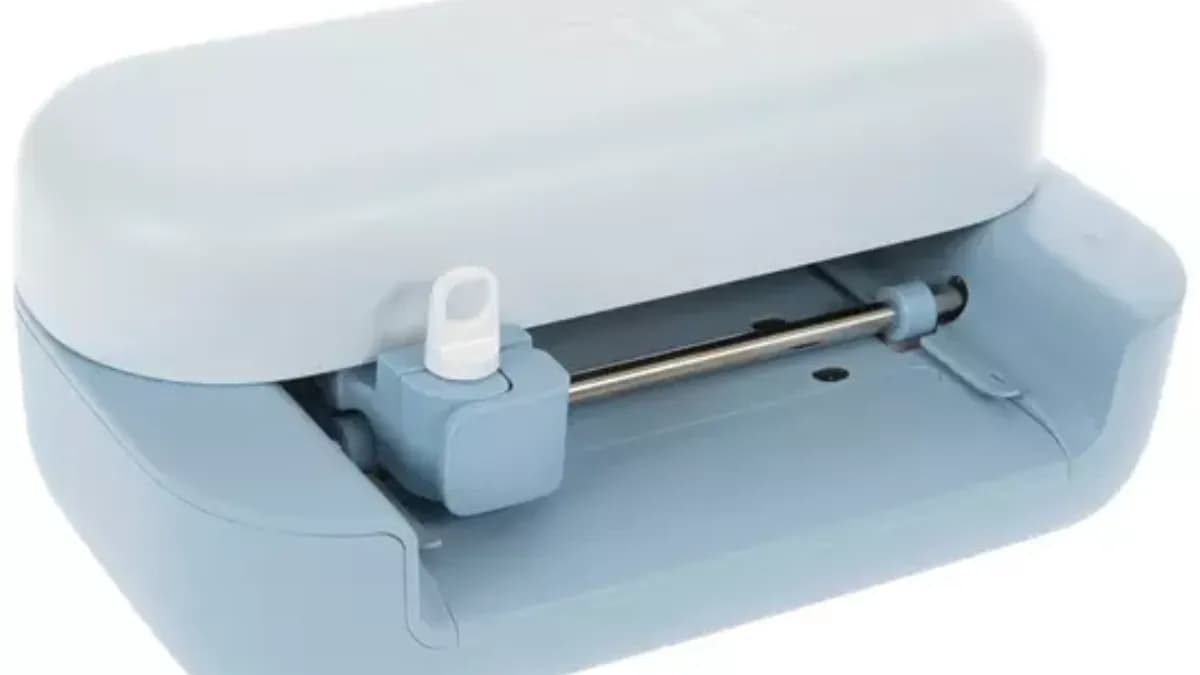
Cricut Joy 2 Account & Machine Setup
Power On Your Cricut Joy 2
Remove the Cricut Joy 2 from its packaging, connect the power adapter, plug it into an outlet, and turn the machine on. Keep the machine nearby while completing setup.Download Cricut Design Space
On an iPhone, iPad, or Android device, download the Cricut Design Space app from the App Store or Google Play. On a Windows or Mac computer, install Design Space from Cricut’s website. An internet connection is required for the initial download and sign-in. Cricut Help CenterCreate Your Cricut Account
Open Cricut Design Space and select the option to Create a Cricut ID or create a new account. Enter the requested information, including your email address and password, then complete the account creation process. If you already have a Cricut account, simply sign in. Cricut Help CenterTurn On Bluetooth
Open the Bluetooth settings on your phone, tablet, or computer and make sure Bluetooth is enabled. Keep your Cricut Joy 2 powered on and close to your device. For mobile setup, Cricut instructs users to pair the device with the cutting machine through Bluetooth.Start Machine Setup
Return to Cricut Design Space. Open the app menu and select Machine Setup or New Machine Setup. Choose the option for setting up a new cutting machine.Select Cricut Joy 2
Choose Cricut Joy 2 from the available machines. Follow the on-screen instructions to connect your Cricut Joy 2 to your device and complete activation. During this process, the Cricut Joy 2 is automatically registered to your Cricut account.Complete the Test Cut
Continue following the instructions in Design Space until you are prompted to perform a test cut. Cricut considers this prompt the indication that initial machine setup has been completed successfully.Your Cricut Joy 2 Is Ready for Badge Guru
Once the Cricut Joy 2 is connected and activated, keep Design Space installed and remain signed into the same Cricut account.
Badge Guru Quick Tip: You do not need a Cricut Access subscription to create a Cricut account or set up the Cricut Joy 2. For the Badge Guru workflow, the important components are an active Cricut ID, Design Space, Bluetooth connectivity, and your Badge Guru-generated SVG files.